• CV
  • Contact
  • Italiano
  • CV
  • Contact
  • Italiano

Content Design › EE

Device updates

[Role and team: to be added]

EE Mobile Manager data showed that many device updates were failing because users submitted the same request multiple times, including after an unsuccessful attempt.

My assumption was that users could not clearly tell whether an update was being processed or how long it would take. The issue was urgent, but the team did not have the capacity to make structural changes to the platform. We therefore focused on the interface content to prevent repeated requests.

50% fewer failed updates. Following our intervention, the percentage of failed updates decreased progressively, eventually stabilising at 50% below its previous level.

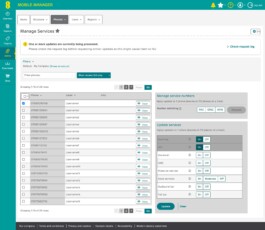
Manage Services: one phone selected, Roaming and IDD set to On, and the Update button enabled
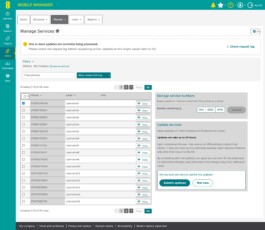
Update services with the confirmation message: processing time of up to 24 hours highlighted, and the Submit updates and Not now buttons
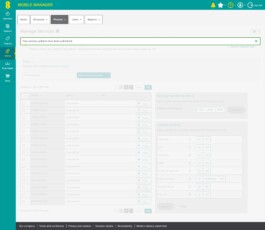
Confirmation message: Your service updates have been submitted
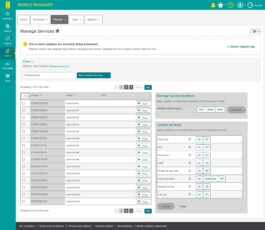
Manage Services with the yellow notice about updates still being processed and the Check request log link
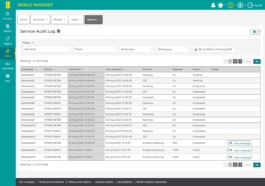
Service Audit Log: list of requests with service, status (Pending, Completed, Failed) and last update
Update services with the confirmation message: processing time of up to 24 hours highlighted, and the Submit updates and Not now buttons

Make essential information stand out

The confirmation message made key information difficult to find and did not give enough prominence to the time needed to process an update. I shortened and clarified the content, highlighted the processing time and rewrote the CTA to make it clear exactly what users were being asked to confirm.
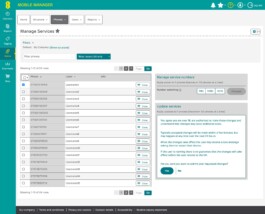
Previous Update services confirmation: a long block of text and the Yes and No buttons
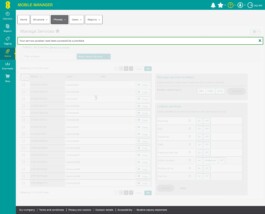
Previous message: Your service updates have been successfully submitted
Manage Services with the yellow notice about updates still being processed and the Check request log link

Make pending updates visible

When an update was still being processed, users could submit the same request again without realising it was already pending. We introduced a message to highlight pending updates, making the status of each request clear before users took further action.
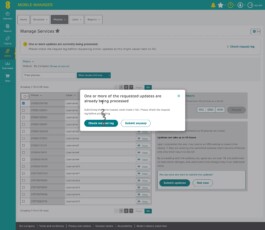
Dialog warning that the same update is already being processed, with the Check request log and Submit anyway buttons

Prevent duplicate requests

A pending-update message alone would not stop someone from submitting the same request again. We therefore introduced a modal explaining the problems that a duplicate request could cause. The aim was to help users make an informed decision without necessarily preventing them from proceeding.
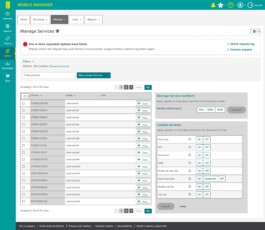
Manage Services with the red notice about failed updates, with the Check request log and Contact support links

Explain what to do when an update fails

Some users resubmitted an update even after it had failed, potentially causing further errors. The new message makes the failure clear and explains what to do next: check the service log and contact customer support to resolve the issue.

What we noticed next

The work addressed an urgent issue, but it also helped us identify other problems with services management. The CTAs for different services were inconsistent, some names did not clearly explain what users could do, and the information about selected devices could be confusing. These observations, later supported by qualitative research, contributed to a wider redesign of the platform.

Network features →

Content Design › EE

Device updates

[Role and team: to be added]

EE Mobile Manager data showed that many device updates were failing because users submitted the same request multiple times, including after an unsuccessful attempt.

My assumption was that users could not clearly tell whether an update was being processed or how long it would take. The issue was urgent, but the team did not have the capacity to make structural changes to the platform. We therefore focused on the interface content to prevent repeated requests.

50% fewer failed updates. Following our intervention, the percentage of failed updates decreased progressively, eventually stabilising at 50% below its previous level.

Manage Services: one phone selected, Roaming and IDD set to On, and the Update button enabled
Update services with the confirmation message: processing time of up to 24 hours highlighted, and the Submit updates and Not now buttons
Confirmation message: Your service updates have been submitted
Manage Services with the yellow notice about updates still being processed and the Check request log link
Service Audit Log: list of requests with service, status (Pending, Completed, Failed) and last update
Update services with the confirmation message: processing time of up to 24 hours highlighted, and the Submit updates and Not now buttons

Make essential information stand out

The confirmation message made key information difficult to find and did not give enough prominence to the time needed to process an update. I shortened and clarified the content, highlighted the processing time and rewrote the CTA to make it clear exactly what users were being asked to confirm.

Previous Update services confirmation: a long block of text and the Yes and No buttons
Previous message: Your service updates have been successfully submitted
Manage Services with the yellow notice about updates still being processed and the Check request log link

Make pending updates visible

When an update was still being processed, users could submit the same request again without realising it was already pending. We introduced a message to highlight pending updates, making the status of each request clear before users took further action.

Dialog warning that the same update is already being processed, with the Check request log and Submit anyway buttons

Prevent duplicate requests

A pending-update message alone would not stop someone from submitting the same request again. We therefore introduced a modal explaining the problems that a duplicate request could cause. The aim was to help users make an informed decision without necessarily preventing them from proceeding.

Manage Services with the red notice about failed updates, with the Check request log and Contact support links

Explain what to do when an update fails

Some users resubmitted an update even after it had failed, potentially causing further errors. The new message makes the failure clear and explains what to do next: check the service log and contact customer support to resolve the issue.

What we noticed next

The work addressed an urgent issue, but it also helped us identify other problems with services management. The CTAs for different services were inconsistent, some names did not clearly explain what users could do, and the information about selected devices could be confusing. These observations, later supported by qualitative research, contributed to a wider redesign of the platform.

Network features →